
A screen video of a terminal is a blurry, unsearchable blob. A Trecs recording is the session itself: sharp at any size, a few kilobytes instead of hundreds of megabytes, and every command is a jump point — so viewers go straight to the step they need instead of scrubbing a timeline.
- Copy, don't retype. Select and copy commands straight out of the player.
- Annotate the moments that matter. Notes attach to commands and pause playback where you want attention.
- Narrate if you like. Optional audio stays in sync as you jump between commands.
- Better than docs alone. Show the real output, the real errors, the real fix — embedded right next to your written instructions.
This repository holds the two command-line tools:
| Tool | What it does |
|---|---|
trecs |
The recorder. Records a terminal session, plays it back, and uploads it to a Trecs platform. |
trecs-edit |
The editor. Trims and fixes a recording, adds annotations, merges recordings, exports Markdown. |
Recordings are played in the browser by the Trecs web player (see The player).
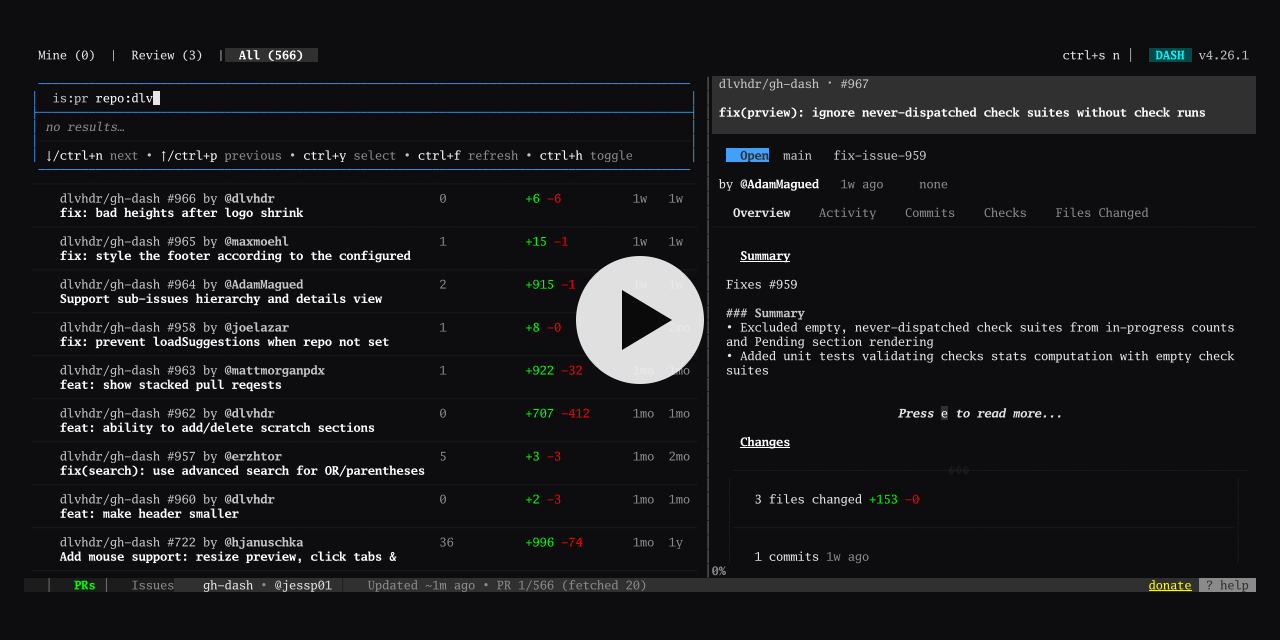
Sample recording, showcasing the excellent gh-dash util
- Install
- Quick start
- The recorder:
trecs - The editor:
trecs-edit - The player
- Free software: the AGPLv3
- Enterprise licences
- Contributing
Download a package or archive for your system from the
releases page: .deb, .rpm and Arch packages, or a .tar.gz holding both binaries. Linux and macOS are the supported platforms; FreeBSD and NetBSD builds are published too.
To build from source you need Go 1.24 or later:
go build -o trecs ./recorder
go build -o trecs-edit ./editor
Recording audio (narration) needs ffmpeg on your PATH. Nothing else is needed.
trecs record                       # work as usual; type `exit` or press Ctrl+D to finish
trecs-edit view <recording>        # play it back, fix it, annotate it
trecs upload <recording> # get a link to share (asks you to log in first)trecs record [options] Record a terminal session
trecs play [options] Play a recording back in the terminal
trecs login [options] Log in to a Trecs server (saves the session)
trecs logout Log out and forget the saved session
trecs upload [options] PATH Upload a recording
trecs help Show the help
trecs record starts your shell inside a recorder and captures everything that happens in it, with millisecond timing: output, colours, cursor movement, and full-screen programs such as vim or htop. Work as you normally would. Ctrl+C goes to the program you are running, not the recorder; to end the recording, type exit or press Ctrl+D.
trecs record                        # name is the date and time
trecs record -name nginx-setup      # a name of your own
trecs record -cmd zsh               # record a particular shell
trecs record -output ~/demos        # choose where recordings are kept
When the recording ends you get its session ID, duration and the path of terminal.jsonl, and a Markdown transcript of the commands and their output is written beside it.
By default, recordings are kept in trecs/recordings under $XDG_CONFIG_HOME (or under $HOME when that is not set). Each recording gets its own session directory holding:
terminal.jsonl— the recording: plain text, one JSON object per line, easy to inspect,grepand diff;metadata.json— session ID, start and end times, the shell used, and the paths of any audio file.
For bash (4.4 and later), zsh and fish the recorder starts the shell with prompt marks (the OSC 133 escape sequences that kitty, iTerm2, WezTerm and VS Code use). They tell the recording, exactly, where each prompt, each command and each command's output begin and end, whatever your prompt looks like. Your own startup files run first, so your prompt, aliases and plugins are all there.
Those marks are what let the player and the editor jump from command to command, and let trecs extract a command list. Other shells (sh, dash, ksh and so on) are recorded too, but without marks the command boundaries have to be inferred from the prompt, which is less reliable. If the shell integration gets in the way of a prompt framework of yours, -no-marks turns it off.
-commands-file makes the recorder type the commands itself instead of reading the keyboard. It needs no terminal at all, so it works in CI, and it is how you keep a tutorial reproducible: change the script, record again.
trecs record -commands-file setup.txt -name nginx-setup
trecs record -commands-file setup.txt -human-like -cols 100 -rows 30- One command per line. Blank lines and lines starting with
#are skipped. A line ending in a backslash, or leaving a quote open, is continued by the next one. - The recorder waits for the shell's next prompt after each command, so output and prompts come out in the order a person would have seen them.
- By default each command is entered at once.
-human-liketypes with the pauses a person makes, between characters and between commands. -colsand-rowsset the terminal size (default: the size of the current terminal, or 172×38 when there is none). They only apply with-commands-file; a person at the keyboard is recorded at the size of their own terminal.
trecs record -audioRecords your voice alongside the terminal, started at the same moment so the two stay in sync, and stays in sync as viewers jump between commands. The default is mono Opus at 32 kbit/s, about a quarter of the size of the same voice as a 128 kbit/s MP3.
| Option | Default | |
|---|---|---|
-audio-device |
default |
The input device |
-audio-codec |
libopus |
libopus (Ogg), libmp3lame or aac |
-audio-bitrate |
32k for Opus | The bitrate |
trecs play -file path/to/terminal.jsonl
trecs play -file path/to/terminal.jsonl -speed 2.0
-speed is a multiplier (default 1.0).
Recordings can be uploaded to a Trecs platform server, which gives you a link to share and a player you can embed.
trecs login -server https://trecs.example.com    # or set $TRECS_SERVER
trecs upload -name "Setting up nginx" -visibility unlisted path/to/session
trecs record -upload                             # upload as soon as the recording ends
trecs logout
login asks for your email and password; use -email to give the email and -password-stdin to read the password from standard input (for scripts). The server is remembered, so you only need -server the first time. upload logs you in if you are not already.
upload option (before the path) |
|
|---|---|
-name |
The recording's title |
-description |
Your own description, in Markdown |
-commands-as-description, -cad |
Describe it with the commands typed (the default) |
-annotations-as-description, -aad |
Describe it with its "show in nav menu" annotations, each linking to its moment |
-visibility |
private (the default), unlisted or public |
-audio |
The audio file (default: audio.opus, or .mp3, .m4a, .ogg, beside the recording) |
PATH is a session directory or a terminal.jsonl. record -upload takes -visibility too.
| Option | Default | |
|---|---|---|
-name |
date and time | Session name |
-output |
see Recording | Where recordings are kept |
-cmd |
your current shell | The shell to run |
-terminal |
true |
Record the terminal |
-audio |
false |
Record audio too |
-commands-file |
Type the commands in this file instead of reading the keyboard | |
-human-like |
false |
With -commands-file, type like a person |
-cols, -rows |
the terminal's | With -commands-file, the terminal size |
-no-marks |
false |
Don't start the shell with prompt marks |
-upload |
false |
Upload when the recording ends |
-visibility |
private |
With -upload: private, unlisted or public |
trecs-edit view   <file>      View and edit a recording
trecs-edit export <file>      Export the commands and their output as Markdown
trecs-edit info   <file>      List the recording's commands
trecs-edit merge  -o <out> <file> <file> [<file>...]
                              Join recordings into one
trecs-edit help
<file> is a terminal.jsonl. The editor never works on your only copy: before a recording is rewritten, the original is kept beside it as <file>.backup.
trecs-edit view plays the recording in a full-screen terminal interface. Pause anywhere, and step from command to command or pick one from the list.
| Key | Action |
|---|---|
Space or P |
Pause / resume |
| Ctrl+P / Ctrl+N | Previous / next command |
| Ctrl+L | Browse the commands, with their start times, and jump to any of them |
| Ctrl+E | Edit the current command |
| Ctrl+A | Timed annotations: list, edit or add |
| Ctrl+T | Show or hide the annotation of the current command |
| Ctrl+X | Dismiss what is on screen (an annotation, a cue card, a preview) |
| Ctrl+F | Full screen |
Q |
Quit |
In the edit screen you can change a command's input and output (a mistyped command, a leaked secret, a noisy stack trace), set its annotation, or delete the command altogether. Ctrl+E inside a field opens it in $EDITOR.
| Key | Action |
|---|---|
| Ctrl+S | Stage the change and carry on editing |
| Ctrl+W | Write the recording and resume playback |
| Ctrl+D | Delete the command |
| Ctrl+P / Ctrl+N | Previous / next command |
| Tab | Move between fields |
| Ctrl+X | Discard the staged change and resume playback |
When the recording is saved, the timestamps are compressed automatically, so a deleted command leaves no gap behind it.
There are three kinds, all written in Markdown (bold, italics, code and links), and all stored in the recording itself:
- Command notes. A note attached to a command. When playback reaches the command it pauses and the note is shown in a panel for the number of seconds you set (set the duration to 0 to switch the note off), then playback carries on. A note moves with its command when you delete others around it.
- Timed annotations (Ctrl+A on the playback screen). Shown at a moment of your choosing, for a duration, either as a card centred over the terminal or in a box at the bottom left. For each one you choose whether to pause playback while it is shown, and whether to show it in the player's command list ("show in nav menu"), where its first line appears under its command.
- Cue cards. A card shown centred over the terminal before a command (an intro) or after it (a post): a title card at the start, a "what we just did" at the end. Add them from the command list with Ctrl+A.
trecs-edit merge -o tutorial.jsonl part1.jsonl part2.jsonl part3.jsonl
trecs-edit merge -gap 2000 -o tutorial.jsonl part1.jsonl part2.jsonl
Joins recordings in the order given: each starts where the one before it ended, after a pause of -gap milliseconds (default 1000), and the screen is cleared. Annotations travel with their frames. The input files are not changed. Record a long tutorial in parts, re-record the part that went wrong, and merge.
trecs-edit export session.jsonl -title "Setting up nginx"Writes the commands and their output as Markdown, to <file>.md beside the recording, with -title as its heading. This is the same transcript trecs record writes when a recording ends, and makes a good starting point for written documentation. trecs-edit info <file> just prints the commands.
Recordings are played in the browser by the Trecs web player, as the watch page of a Trecs platform or embedded in your own pages. Because it renders text rather than playing pixels, it is sharp on a phone and on a 4K display alike, and a recording loads at once even on a poor connection.
- Command navigation. Previous and next buttons and a command list; click any command to jump straight to it. Annotations marked "show in nav menu" appear under their commands.
- Copy, don't retype. Pause, then select and copy any text on the screen, or use Copy screen to copy all of it.
- Annotations and cue cards appear as you authored them; a viewer can hide or show them.
- Audio is kept in sync, however the viewer jumps around, with mute and volume controls.
- Share a moment. The right-click menu copies the recording's URL, the URL at the current time, the embed code, or an image link for a README. Links accept a start time (
?t=21,7:21or1:02:03). - Full screen, and a layout that adapts from phone to desktop.
The platform's share menu gives you an <iframe> embed code. To host the player yourself, include the player bundle and use the <trecs-player> element:
<trecs-player src="session.jsonl" audio="session.opus"></trecs-player>
<script src="trecs-player.js"></script>| Attribute | |
|---|---|
src |
URL of a .jsonl recording |
audio |
URL of an audio track, used with src |
recording-id and api-base |
Load a recording from a Trecs platform instead of src |
autoplay |
Start playing when loaded (muted, if there is audio) |
start-at |
Where to start: seconds, 7:21 or 1:02:03 |
preview |
A still with a play button, for cards and thumbnails |
A recording is plain text, so it can also be packed with the player into a single HTML file that opens with a double-click, with no server.
Trecs is free software, released under the GNU Affero General Public License, version 3 (AGPLv3). You are free to use it, change it and share it, on one condition that matters more than all the others:
If you distribute Trecs, you must distribute its source.
Whenever you give anyone a copy of Trecs, or of anything that contains it — a binary, a package, a container image, an installer, a copy bundled into your product or appliance — the people who receive it must also receive the complete source code, under the AGPLv3. That includes every change you made. If Trecs is built into a larger program, the whole program is covered, not just the Trecs part. (Shipping Trecs beside separate, unrelated programs is fine, provided its source comes with it.)
In short: you can redistribute Trecs, but you cannot make it closed, rebrand it as your own proprietary product, or bundle it into one. If that is what you need, you need an enterprise licence.
The same idea applies to running it as a service. If you run a modified Trecs so that other people use it over a network (a hosted recorder or platform, say), you must offer those users the source of your modified version. That is the "A" in AGPL: hosting it on a server instead of shipping it does not get you out of the rule above.
In plain terms (a summary, not legal advice; the licence text is what counts):
You are free to
- use Trecs for any purpose, including commercial work, and make as many recordings as you like. What you record is yours; the licence does not reach it;
- read, study and modify the source;
- run it, modified or not, inside your own organisation;
- share copies, modified or not, and charge for doing so, as long as the source goes with them.
You must
- provide the complete source, under the AGPLv3, to everyone you distribute a copy to (above), and to everyone who uses your modified version over a network;
- keep the copyright and licence notices, and mark your changes as yours.
You may not
- distribute Trecs, or something built from it, under a proprietary licence or without its source;
- add restrictions of your own on top of the AGPLv3 for the people who receive your version;
- remove the licence and copyright notices.
Solwork also offers enterprise licences. They replace the AGPLv3's conditions with commercial terms, so you don't have to publish your modifications or ship your source, and they cover:
- A private, white-labelled instance of the Trecs platform, running on your own servers or fully managed by Solwork, under your own name and branding.
- Integration with your ticketing, support and bug-tracking system, so a recording can travel with the ticket it belongs to instead of a paragraph of "steps to reproduce".
- White-labelling and distribution of the recorder, so you can rebrand
trecsand ship it to your customers, support staff or users as part of your own tooling.
To talk about an enterprise licence, write to jesse@solwork.io.
Contributions are welcome (see CONTRIBUTING.md for the details): bug reports, fixes, documentation, new ideas, and recordings that show a problem. For anything bigger than a small fix, please open an issue first, so we can agree on the direction before you spend time on it.
- Fork the repository, work on a branch, and open a pull request.
- Keep a change focused, add tests where you can, and make sure
go test ./...passes. - Contributions are made under the contributor licence agreement in CONTRIBUTING.md: you keep your copyright, the project stays AGPLv3, and Solwork may also offer your contribution under its enterprise licences.
A note on the AGPLv3 and your changes: nothing obliges you to send them to us, but if you distribute a modified Trecs, or run one as a service for others, you have to publish its source under the AGPLv3 anyway. Sending your change upstream means you don't have to carry a fork — and everyone benefits from it.
Trecs is released under the GNU Affero General Public License v3.0. Enterprise licences are available separately; see above.