

MonitorPy is a simple system tray Python application for Windows 10/11 that allows you to control brightness and contrast of multiple monitors directly from the tray.
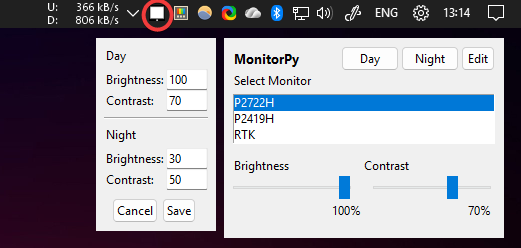
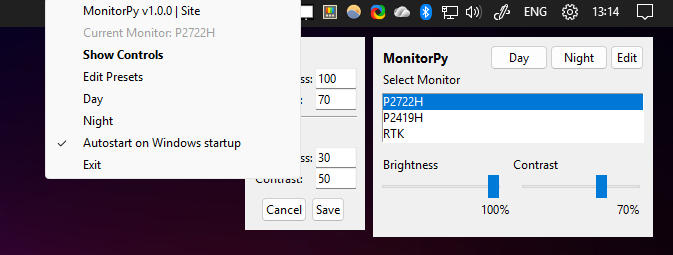
- Adjust brightness and contrast for connected monitors.
- System tray icon with quick access menu.
- Select between multiple monitors. Plugged or unplugged a monitor? Use Refresh monitors in the tray menu (it also refreshes by itself the next time you open the window).
- Edit Presets for brightness and contrast.
- Global hotkeys (work from any application, even when the window is hidden):
Ctrl+F10/Ctrl+F11: brightness down / upAlt+F10/Alt+F11: contrast down / up- If another program already uses one of these keys, MonitorPy tells you at startup.
- Autostart on Windows startup option.
- Lightweight and easy to use.
- Python 3.8+
The following dependencies are used only if you run MonitorPy.py or build the standalone executable.
- monitorcontrol
- pystray
- pillow
- pyinstaller
- sv-ttk and darkdetect for the Light/Dark themes
- pytest, only needed to run the test suite (see Development)
-
Download and run the standalone
MonitorPy.exefile from the Releases section. To uninstall, just delete the file. -
Download
MonitorPy.py, install the dependencies with:pip install -r requirements.txt
and run
python MonitorPy.py
-
To build the standalone executable, use
PyInstaller:pyinstaller MonitorPy.spec
-
To push a new tag version and upload the
MonitorPy.exeto Releases:git tag v1.0.4 git push origin v1.0.4 gh release create v1.0.4 dist/MonitorPy.exe --title "v1.0.4" --notes "your notes"
- The app discovers all connected monitors supporting DDC/CI.
- You can select a monitor and adjust its brightness and contrast using sliders, and presets.
- The tray icon provides quick access to show controls, presets and edit presets values, autostar and exit.
- Supports modern Light and Dark mode themes (with System Default sync) via the tray menu.
The code lives in the monitorpy/ package (MonitorPy.py is just the entry point); tests/ holds a pytest suite covering it.
pip install -r requirements.txt
pytest
Most tests use a fake monitor and never touch real hardware or your actual %APPDATA%. A few, marked hardware, exercise whatever monitors are actually connected and skip themselves cleanly if none are found or if a check doesn't apply:
pytest -m "not hardware"   # skip the ones that need real monitors
pytest -m hardware # only thoseBoth live in %APPDATA%\MonitorPy\:
config.json: your Day/Night presets and theme. Older versions usedpresets.json; it is migrated automatically. If the file is ever corrupt, MonitorPy starts with defaults and keeps the broken file asconfig.json.bad.monitorpy.log: diagnostic log (rotates at 256 KB). Attach it when reporting a problem.
- If you see "No DDC/CI" next to a monitor, it means the monitor does not support DDC/CI or is not detected.
- Make sure you have the required permissions and drivers for monitor control.
MIT License
paulomarconi