

Spotify in your terminal.
Plays on its own, with Home and the DJ, synced lyrics, real cover art and a mouse that works everywhere.


Install · Setup · Keys · FAQ · Changelog

Recorded from cloofy demo, which needs no account. The covers are Spotify's; the library is made up.
cloofy is a Spotify client that runs entirely in the terminal. It plays the music itself, with no official app or daemon in the background, and it shows up as a Spotify Connect device you can pick from your phone. It looks and works like the desktop client you know: your Home feed, your library in a sidebar, cover art, synced lyrics, and the DJ talking between tracks.
- Plays on its own. Audio goes through librespot, and cloofy is a Spotify Connect device. It controls your other devices too, and follows them live.
- Home and the DJ. Your shelves, Made For You mixes, and the DJ with its voice between tracks. Ask the DJ for something, as in Spotify's apps, or let it pick something different. Crossfade if you like.
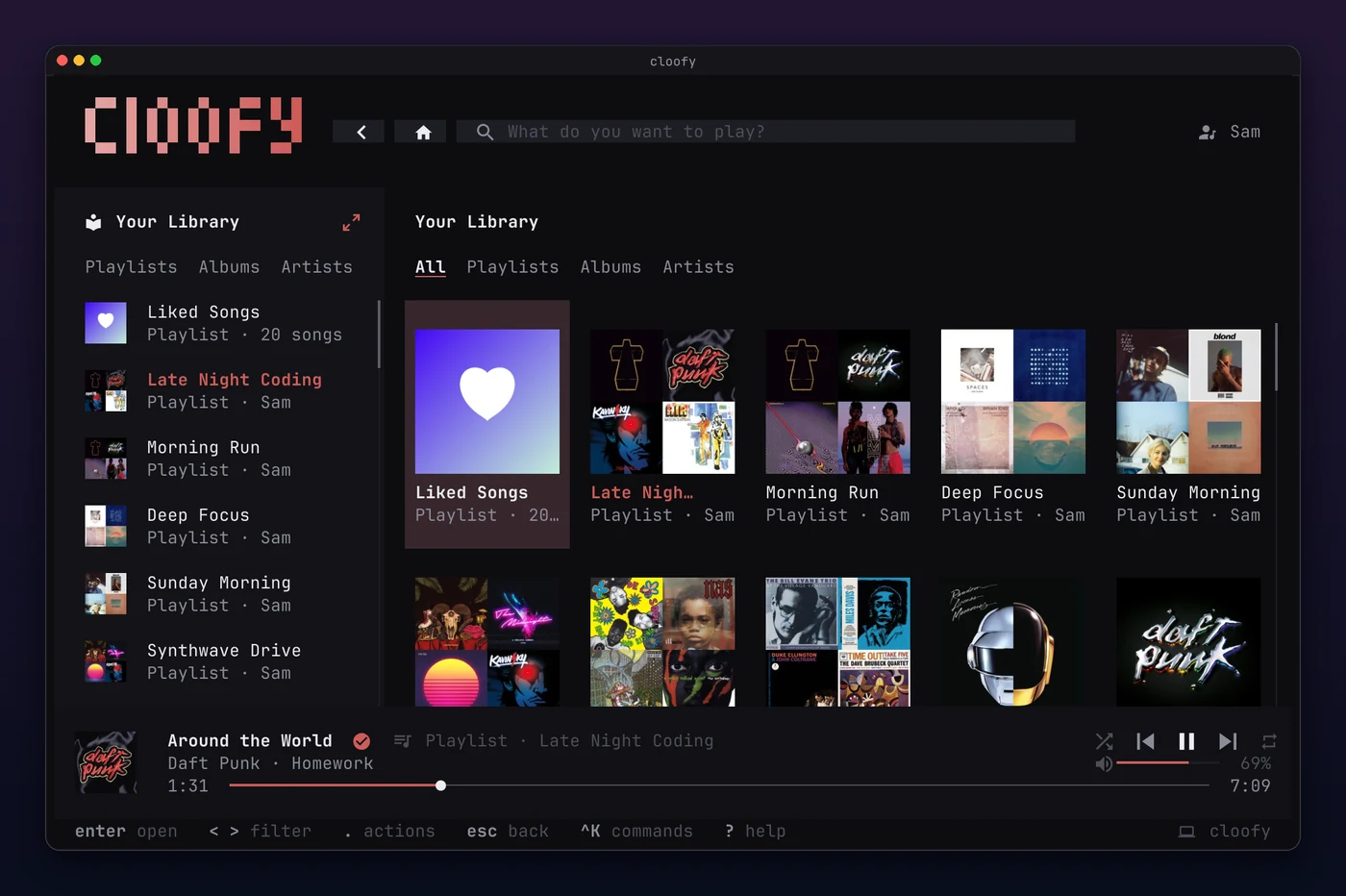
- Your library. Playlists, albums, artists and podcasts, in a sidebar or as a full page with covers.
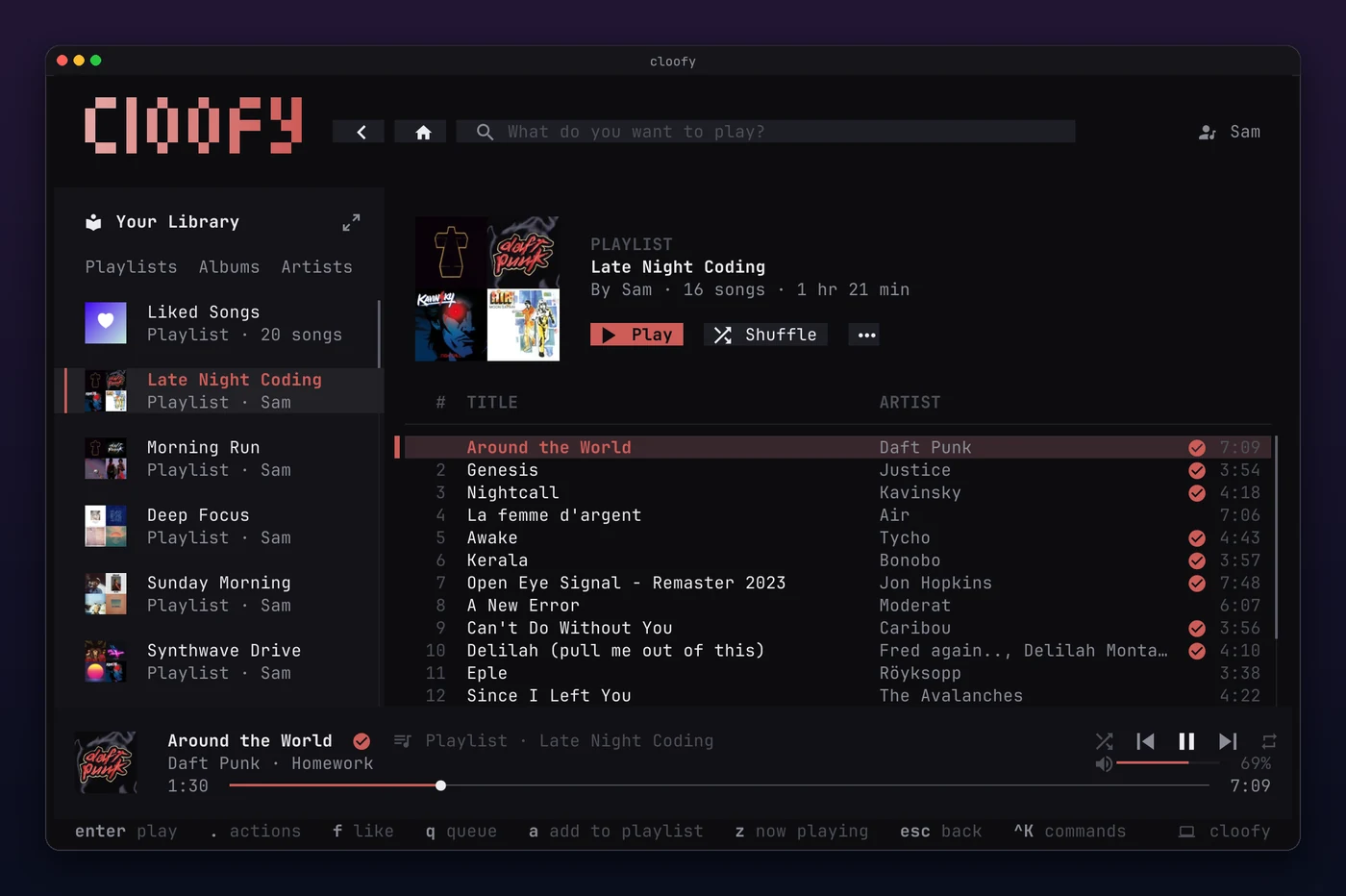
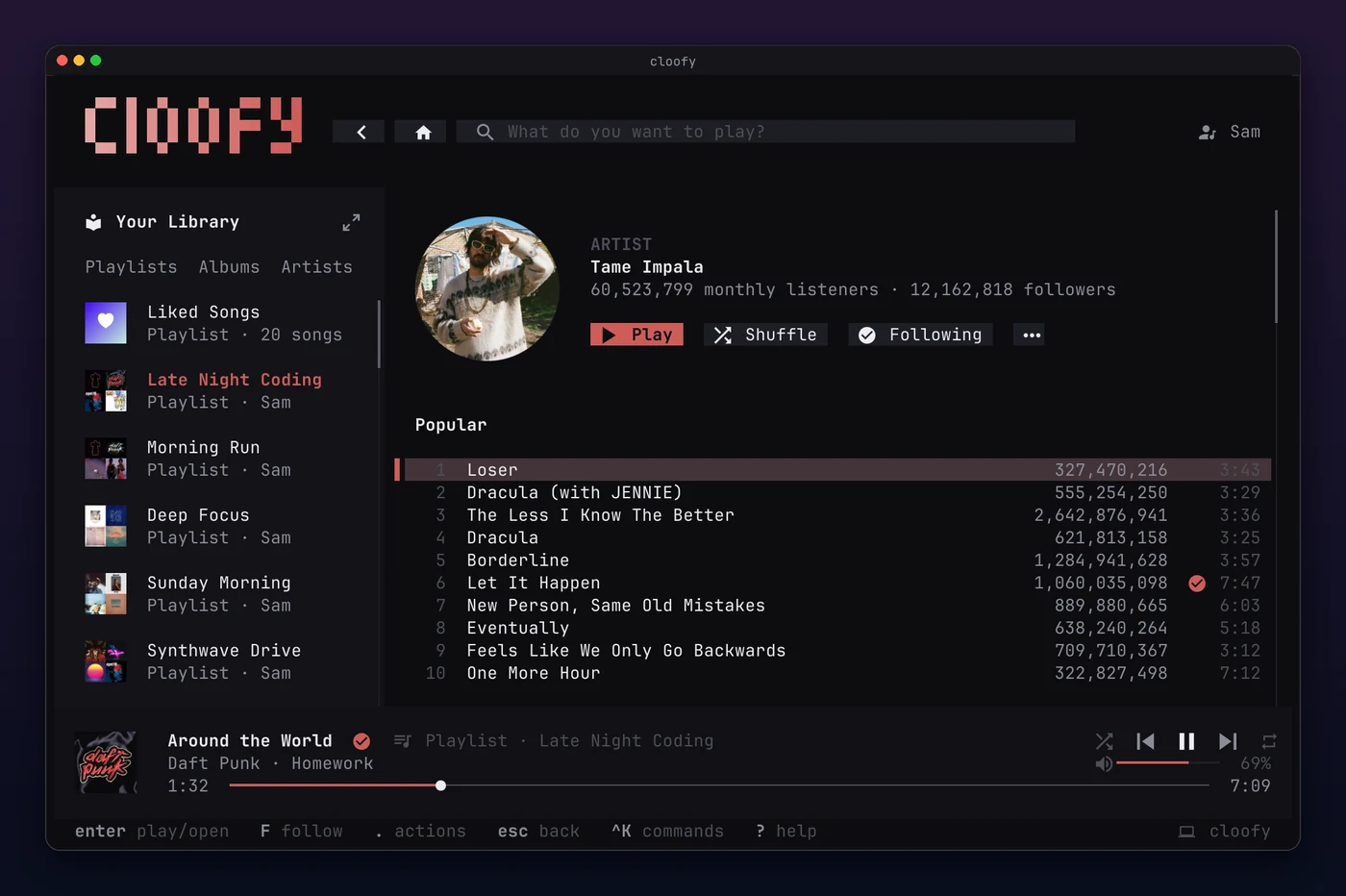
- Every page. Playlists, albums and artist pages with popular tracks and releases, plus search with artwork.
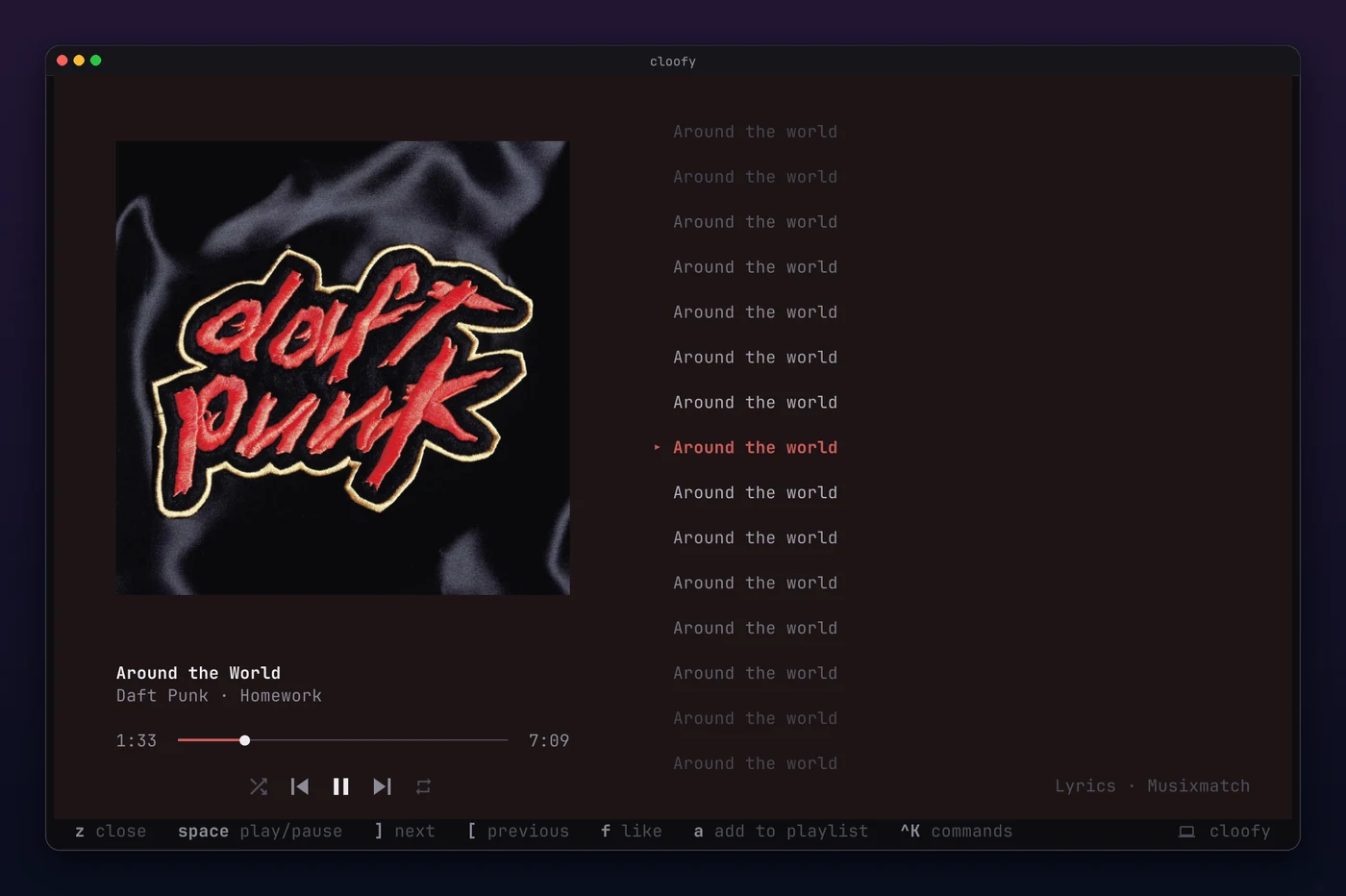
- Synced lyrics. The current line lights up next to a large cover in the now-playing view.
- Cover art. Real images in terminals that speak the Kitty graphics protocol, and block art everywhere else.
- Mouse and keyboard. Click, hover, scroll, drag the seek and volume bars, right-click for actions. Every action also has a key, and Ctrl K finds the rest.
- Instant. The last page, list and track are back the moment it starts, and the controls answer before Spotify does.
- At home on macOS. Media keys, AirPods and Control Center, headphones that pause when they disconnect, Reduce Motion and Low Power Mode.
z opens the track in full: a large cover, and lyrics that follow the song line by line.
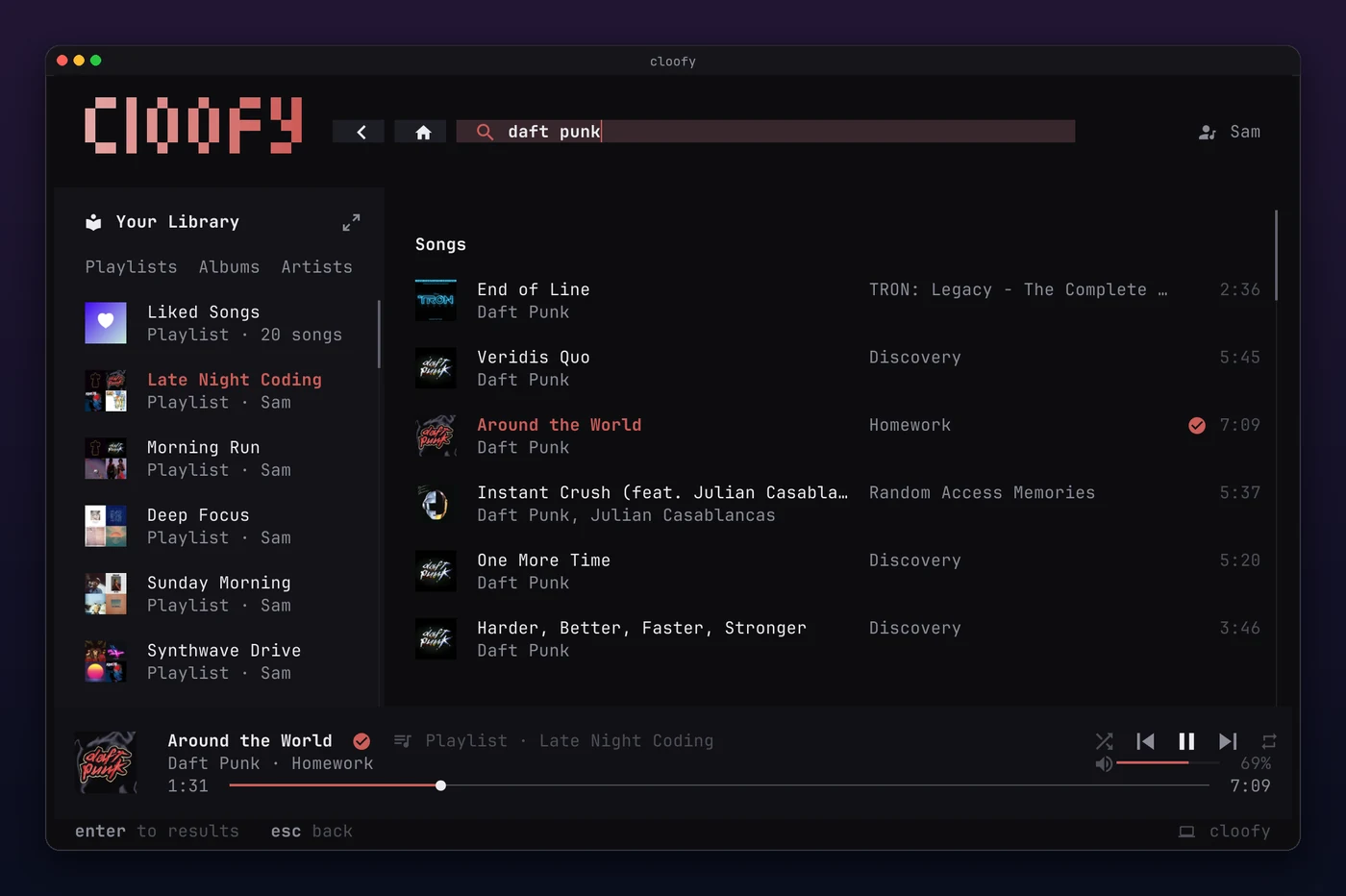
Playlists and albums with the playing song marked, artist pages with popular tracks and play counts, search with covers, and your whole library as a grid.
 |
 |
 |
 |
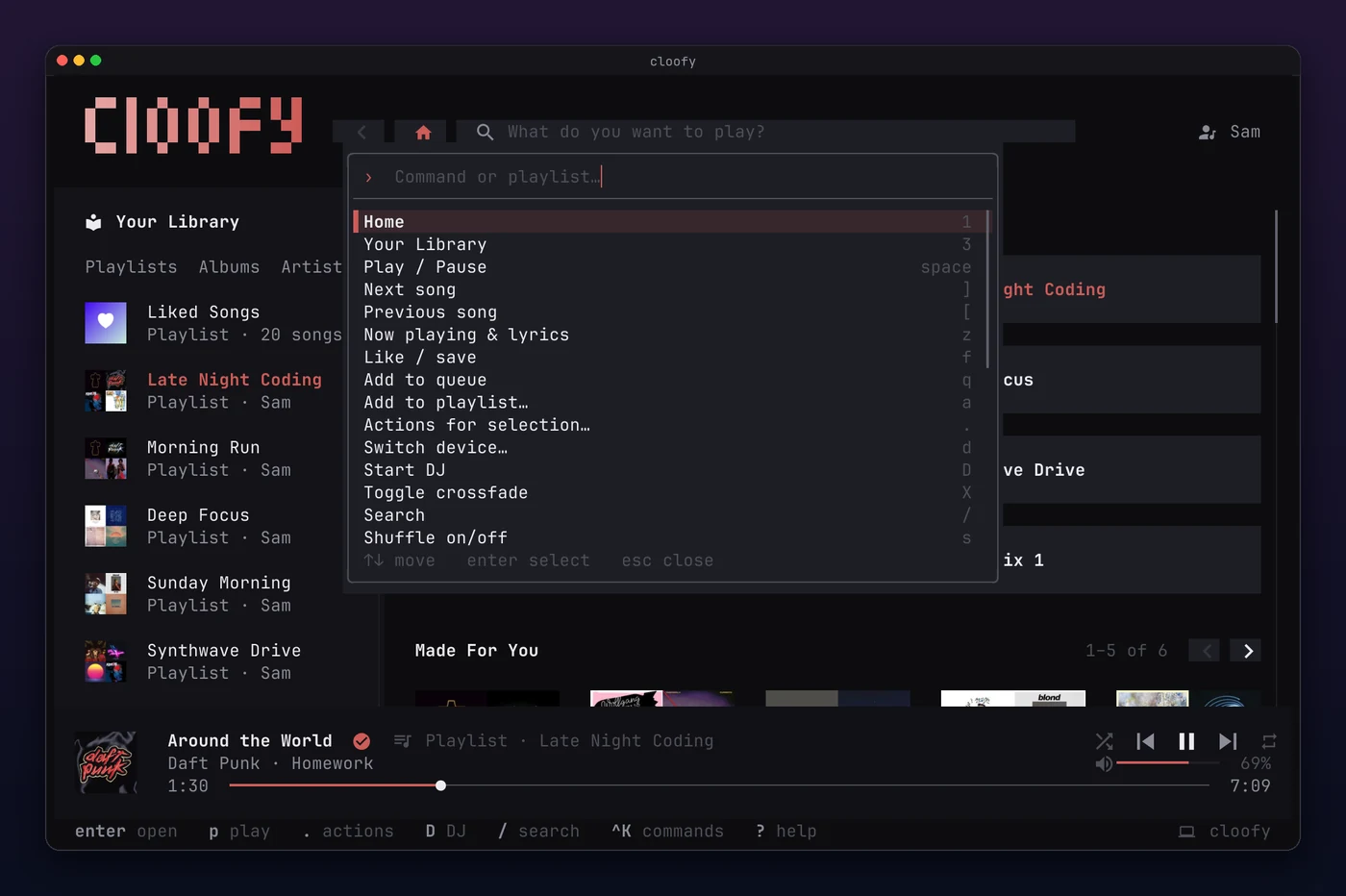
Ctrl K opens a command palette for every action and playlist, ? lists all keys, and the hint bar at the bottom shows what works on the current page. All of it works with the mouse too.
cloofy demoThe demo opens the full interface with a sample library: real albums and artists, and a few made-up playlists. It needs no account and plays nothing, so it's a quick way to see how cloofy looks in your terminal. Every picture on this page comes from it.
curl -fsSL https://raw.githubusercontent.com/parda21/cloofy/main/install.sh | bashThe installer checks your system, puts the latest release in ~/.local/bin, and walks you through the setup: your Spotify app, its client ID, and signing in. cloofy offers new releases itself, see updates.
Installer options, building from source
bash -s -- --yesinstalls without asking anything.bash -s -- --uninstallremoves cloofy.
On platforms without a prebuilt binary, the installer builds cloofy with cargo. To do that yourself (Rust 1.88 or newer):
cargo install --git https://github.com/parda21/cloofy --lockedOn Linux the build needs the ALSA and PulseAudio headers:
| Distro | Packages |
|---|---|
| Debian, Ubuntu | libasound2-dev libpulse-dev pkg-config |
| Fedora | alsa-lib-devel pulseaudio-libs-devel |
| Arch | alsa-lib libpulse |
Note
Playing music needs Spotify Premium, and reading your library needs a free Spotify developer app of your own. The installer guides you through it in about two minutes.
-
Create an app at developer.spotify.com/dashboard. Give it any name, set the redirect URI to
http://127.0.0.1:8974/callback, and pick the Web API. -
If you listen with another Spotify account than the dashboard's, add it under User Management.
-
Put the app's client ID into
~/.config/cloofy/config.toml:client_id = "your client id"
-
Run
cloofy login. The browser opens twice: once for your app, once for playback. -
Run
cloofy doctorto check that everything works, thencloofy.
All shortcuts
| Key | Action |
|---|---|
| space | Play or pause |
| [ ] | Previous, next track |
| ⇧ ← → | Seek 5 seconds |
| + - | Volume |
| s r | Shuffle, repeat |
| 1 / 3 | Home, search, your library |
| enter | Open or play the selection |
| esc | Back |
| f | Like the song, or save the album or playlist |
| F | Follow the artist |
| q a | Add to queue, add to a playlist |
| . | Actions for the selection |
| z | Now playing and lyrics |
| d | Devices |
| D | Start the DJ; while it plays, ask it for something |
| U | Update cloofy |
| Ctrl K | Command palette |
| ? | All shortcuts |
| Ctrl C | Quit |
Other commands:
cloofy play <uri or link>   # play without the interface; --shuffle to shuffle
cloofy connect              # wait as a Spotify Connect device until an app picks it
cloofy login --force        # sign in again
cloofy update # update to the latest releaseWhen a new release is out, an update button shows in the top bar. Click it or press U: cloofy downloads the release, checks it against its published checksum and puts it in place of itself, then the same button restarts it. cloofy update does the same without the interface. Where cloofy can't write to its own folder, such as /usr/local/bin, update with the installer.
~/.config/cloofy/config.toml:
client_id = "your client id"
crossfade = 6              # seconds tracks overlap, 0 to 12; off when missing
icons = "nerd"             # "nerd" or "text"; detected from the terminal when missing
notifications = false      # no desktop notifications for new tracks; on when missing
credentials = "keychain"   # macOS: sign-ins in the Keychain instead of files
update_check = false       # don't look for new releases at start; on when missing
Inside tmux, notifications need set -g focus-events on and set -g allow-passthrough all in ~/.tmux.conf. With credentials = "keychain", cloofy moves its sign-ins into the macOS Keychain on the next start; macOS asks once after each update, because release builds aren't signed yet.
cloofy keeps its sign-ins (unless they are in the Keychain) and its session in ~/.local/share/cloofy, and its caches and log in ~/.cache/cloofy.
| Terminal | Cover art | Icons | Notifications |
|---|---|---|---|
| Ghostty, kitty, WezTerm | Real images | Built in | Yes |
| iTerm2 | Blocks | With a Nerd Font | Yes |
| Others | Blocks | With a Nerd Font | No |
Every terminal needs true color. Without a Nerd Font, set icons = "text".
Why do I need my own Spotify app?
Spotify gives its Web API, which cloofy reads your library and searches through, only to registered apps. Apps in development mode are limited to a handful of users, so one shared app couldn't serve everyone. Yours is free and only yours, and the installer sets it up with you.
Does it work with a free account?
No. Outside its own apps, Spotify streams only to Premium accounts.
What does cloofy send where?
Requests to Spotify, and to LRCLIB for lyrics Spotify doesn't have. Nothing else: no telemetry, no server of its own.
How does it work?
Playback runs through a fork of librespot that adds the DJ and crossfade from two open upstream pull requests. Your library and search come from the Web API through your own app. Home, artist pages and the DJ use Spotify's internal APIs, the same ones its own apps use. Those are not public and may change without notice.
To librespot for playing Spotify outside Spotify, including the open pull requests for the DJ and crossfade; to ratatui, ratatui-image and tachyonfx for the interface; and to @yk-sgr for everything that makes cloofy feel at home on macOS.
cloofy is not affiliated with Spotify. It is MIT licensed.
Was this repo created with the help of AI? Yes.
Do I care, as long as it works? No.