

Not a real product. The actual switch is shown under The hardware.
Horaco HC-SWTGW215AS as a UniFi Switch Flex Mini 2.5G.
Firmware that lets a UniFi Network controller adopt and manage a Horaco HC-SWTGW215AS (5 x 2.5GbE RJ45 + 1 x 10G SFP+) as a USW-Flex-2.5G-5 (Switch Flex Mini 2.5G).
The HC-SWTGW215AS uses the same class of Realtek RTL8372 switch chip as small 2.5G switches in general and costs a fraction of the UniFi model. This project replaces its stock firmware with RTLPlayground, an open-source firmware for RTL837x switches, and adds a UniFi device agent that runs on the switch's own 8051 CPU. The agent implements the device side of the UniFi inform protocol: discovery by the controller, adoption, AES-GCM encrypted informs, and applying the port and VLAN configuration the controller sends. No extra hardware, Raspberry Pi or helper service is needed.
Not affiliated with or endorsed by Ubiquiti or Horaco. UniFi is a trademark of Ubiquiti Inc. The UniFi device protocol is undocumented; this implementation follows observed controller behaviour. Replacing switch firmware can make the device unusable; without a SOIC-8 clip and SPI programmer a switch that does not boot cannot be recovered.
Horaco HC-SWTGW215AS (image: HORACO)
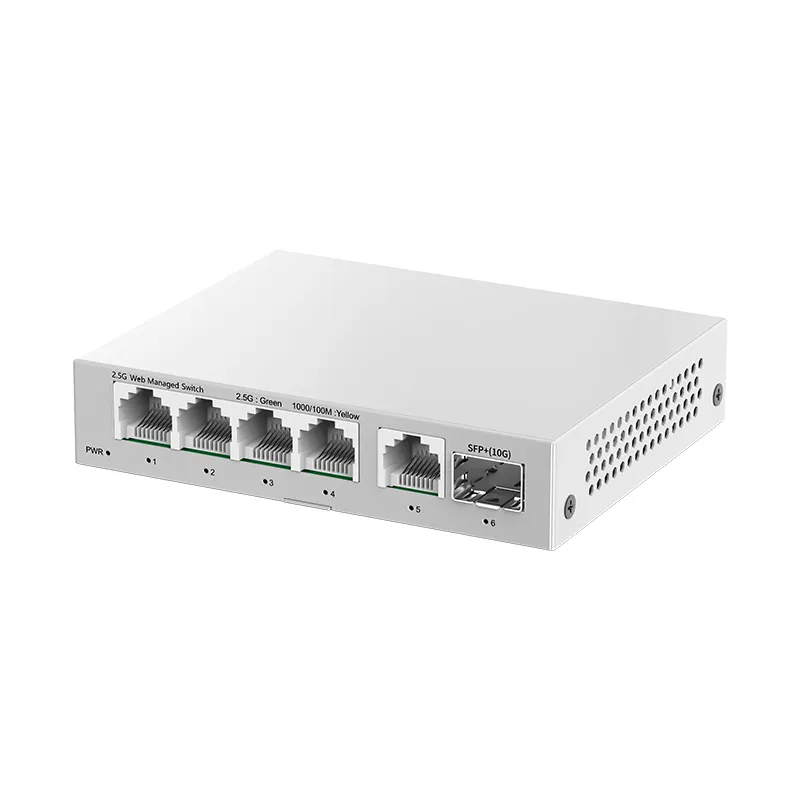
Model: Horaco HC-SWTGW215AS, "2.5G Web Managed Switch": 5 x 2.5GbE RJ45 + 1 x 10G SFP+, metal case, port 6 labelled "SFP+(10G)". The one used here was bought from this AliExpress listing.
Horaco and other brands sell many switches that look almost the same (4+1, 8+1, unmanaged, PoE, different chips). Only the HC-SWTGW215AS has been tested. The web-managed version is needed: an unmanaged switch has no web page to upload the firmware through. If the listing offers several variants, pick the 5 x 2.5G + 1 x 10G SFP+ managed one and check that the model name on the label is HC-SWTGW215AS. The stock firmware tested was V200.1.10.
UniFi shows the switch as a USW-Flex-2.5G-5 (Switch Flex Mini 2.5G, model code USWED35). How the two compare:
| Horaco HC-SWTGW215AS with HoraFlex | UniFi USW-Flex-2.5G-5 | |
|---|---|---|
| RJ45 ports | 5 x 2.5GbE | 5 x 2.5GbE |
| SFP+ | 1 x 10G (works as a normal switch port, not shown in UniFi) | none |
| Power | its own power adapter | USB-C (5 V 1 A) or PoE from port 1 |
| Managed by UniFi | yes, ports and VLANs (see What works) | yes, all features |
| Firmware updates | from this project's releases, not from UniFi | from UniFi |
| Switching capacity | 45 Gbps (Horaco) | 25 Gbps |
| Size | larger (metal desktop case) | 117 x 90 x 21 mm |
Ubiquiti's full specifications: techspecs.ui.com/unifi/switching/usw-flex-2-5g-5. The USW-Flex-2.5G-5 needs UniFi Network 8.6.9 or newer.
Adopted in UniFi Network (UCG Ultra, Network 10.6), listed next to the gateway:


The switch's own web page after installing:

More pages: ports, VLANs, system, firmware update


Tested on one HC-SWTGW215AS (stock firmware V200.1.10) with a UniFi Cloud Gateway Ultra running UniFi Network 10.6.109:
| Feature | Status |
|---|---|
| Shows as Pending Adoption, adopts, stays online (AES-GCM) | tested |
| Port enable / disable | tested (link goes down and up) |
| Native VLAN, blocked tagged VLANs, port profile changes | tested |
| Tagged VLANs | tested in the switch's VLAN table; not checked with a packet capture |
| Port names | tested |
| Reboot and firmware update without re-adoption | tested |
| Out of the box: DHCP, finds the UniFi gateway, adopt | tested |
| Reset button: restart (hold 3-10 s) and factory reset (hold > 10 s) | tested |
| Forget / remove in UniFi (ports return to a plain switch) | tested |
| Link state, speed and packet counters per port | tested |
| 2.5G links, SFP+ port | not tested (the SFP+ is not shown in UniFi and keeps forwarding on VLAN 1) |
| Byte counters, client lists, LLDP topology, PoE | not provided |
| Management VLAN other than 1 | not supported |
Other controllers (UniFi OS consoles, self-hosted Network application) and other Network versions
may work but are untested. Other RTL8372/8373 switches supported by RTLPlayground may work with a
different MACHINE, but only this model has been tried.
UniFi ports 1-5 are the front-panel RJ45 ports 1-5 (left to right). The SFP+ cage is not reported to UniFi.
You need a computer with a wired Ethernet port and the files from the latest release:
...-oem-upgrade.binfor a switch still on its stock firmware...-SWTG024AS_A_2_0_1_5C_1SFP.binfor a switch already running this firmware or RTLPlaygroundSHA256SUMSto check the downloads
- Connect the computer directly to any RJ45 port of the switch and give the computer a fixed
address in the switch's network, for example
192.168.2.2, netmask255.255.255.0:- Windows: Settings > Network > Ethernet > IP assignment > Edit > Manual > IPv4.
- macOS: System Settings > Network > (the Ethernet adapter) > Details > TCP/IP > Configure IPv4: Manually.
- Open
http://192.168.2.1and log in to the stock web interface (defaultadmin/admin). Note the firmware version under System; this was tested with V200.1.10. - Open System > Firmware Upgrade, confirm, and upload the
-oem-upgrade.binfile. Do not upload the other.binto the stock firmware. - Wait at least 5 minutes and do not power off the switch. It reboots into the new firmware.
- Set the computer back to automatic network settings.
- Connect any port of the switch to your UniFi network.
- The switch gets an address from your router (DHCP) and contacts the network's gateway by itself. With a UniFi gateway (UCG, UDM, UXG, ...) that is the controller, so within a minute the switch appears in UniFi Network > Devices as USW Flex 2.5G 5, waiting for adoption.
- Click Adopt. Manage ports and VLANs from UniFi as usual.
The port the switch reaches UniFi through is protected: the switch refuses any change from UniFi that would disable that port or remove the Default network from it.
If your UniFi Network application runs somewhere else (a Cloud Key, or a computer), tell the switch where it is; see the next section.
The switch's own web interface (http://<switch address>, the address is listed in UniFi) uses the
password 1234. Change it in System > Startup configuration by adding a line, then save:
passwd MyNewPassword
The switch works without any settings. These lines can be added in System > Startup configuration (the switch's web interface) when needed; save and reboot (System > Reboot switch) afterwards.
| Line | Meaning |
|---|---|
unifi controller 192.168.1.10 |
address of the UniFi Network application, when it is not the gateway (Cloud Key, computer) |
unifi off |
do not connect to UniFi; the switch works as a plain switch |
ip 192.168.1.240 |
fixed address instead of DHCP. Use one outside the range your router hands out, and add gw and netmask, and remove the ip dhcp line |
gw 192.168.1.1 |
gateway: your router's address (only with a fixed address) |
netmask 255.255.255.0 |
your network's subnet mask; 255.255.255.0 for most home networks (only with a fixed address) |
unifi uplink 1 |
always protect port 1 instead of the port the controller is reached through |
passwd ... |
password for the switch's web interface |
The startup configuration as shipped is:
ip 192.168.2.1
gw 192.168.2.254
netmask 255.255.255.0
ip dhcp
The first three lines are the address used when no DHCP server answers within a minute (the same
address as the stock firmware); ip dhcp takes an address from your router.
The switch tells UniFi that it is a USWED35 at firmware 2.1.8.971, and that it only accepts firmware 99.0.0 or newer. UniFi therefore never offers it Ubiquiti's firmware ("Upgrade unavailable" in the controller log), also with automatic updates turned on. Ubiquiti's firmware is for different hardware and would not run on this switch.
If UniFi asks the switch to upgrade anyway, the switch installs nothing, keeps running this firmware and reports the requested version, so UniFi considers the update done instead of retrying it. Both cases were tested with a UCG Ultra.
Updates of this firmware (new releases here) are installed in the switch's own web interface, see "Everyday tasks".
The reset hole is on the back, next to the power input. Use a paperclip:
| Hold | Result |
|---|---|
| 3-10 seconds, then release | restart |
| more than 10 seconds, then release | factory reset: the startup configuration as shipped, UniFi adoption cleared, then restart |
After a factory reset UniFi shows the switch as offline or "Adoption Failed", because UniFi still expects the old adoption: remove the device in UniFi and adopt it again.
| Task | How |
|---|---|
| Update the firmware | Firmware page of the switch's web interface: upload the new ...-SWTG024AS_A_2_0_1_5C_1SFP.bin. Adoption and settings are kept. |
| Stop UniFi management | Add unifi off to the startup configuration and reboot. The ports keep their last settings. |
| Return to a plain switch | Remove the device in UniFi (this resets all ports to the Default network), then add unifi off. |
| See what the switch is doing | See "Reading the switch's log" below. |
| Back up the switch's memory | See doc/unifi.md. |
Going back to the stock Horaco firmware is only possible by opening the switch and writing a saved copy of its original memory chip with a SPI programmer (a small USB device with a clip for the chip).
Status messages, including the output of the unifi command, are not shown on the web page. They go
to the switch's log, which it can send over the network ("syslog") to a computer:
-
Add to the startup configuration, with your computer's address, and save:
syslog ip 192.168.1.50 syslog on -
On that computer, run a syslog receiver listening on UDP port 514, for example the free Visual Syslog Server on Windows, or on macOS/Linux:
python3 -c "import socket;s=socket.socket(socket.AF_INET,socket.SOCK_DGRAM);s.bind(('',514));[print(s.recv(4096).decode(errors='replace'),flush=True) for _ in iter(int,1)]"(On Linux this needs
sudo.) -
In System > Console of the switch, type
unifiand press Enter. The status appears in the receiver: whether the switch is adopted, how many messages succeeded or failed, and any error.
| Problem | What to check |
|---|---|
| The switch never appears in UniFi | Check that the switch got an address: it is listed among the clients in UniFi, or in your router. Without DHCP it uses 192.168.2.1. If the UniFi Network application is not on your gateway, add unifi controller <its address>. The controller listens on port 8080; a firewall between them must allow it. |
| UniFi shows "Adoption Failed" or the switch stays offline | Remove the device in UniFi and wait a minute; it appears again, ready to adopt. This is needed after a factory reset. Make sure the configuration does not contain unifi discovery on: with it, UniFi tries to adopt through a remote login (SSH) this switch does not have. |
| A change made in UniFi has no effect | Read the switch's log (above) and type unifi. A "Config error" other than 0 means the switch refused the change; error 8 or 9 means it would have disabled the uplink port or removed the Default network from it. |
| The switch's web page cannot be reached | Look up the switch's address in UniFi or your router. If nothing else helps, hold the reset button for more than 10 seconds (factory reset). |
| Unsure which firmware is running | The web interface's Dashboard shows the software version. |
The agent (unifi/) informs the controller over HTTP every 10 seconds. Before adoption it uses
AES-128-CBC with UniFi's default key; the adoption response carries the device key, which is stored in
flash, and from then on all messages use AES-128-GCM. Port and VLAN settings arrive as system_cfg
properties; they are applied only from messages whose GCM tag verified, and the whole configuration is
rejected if any part of it is invalid. The applied configuration and its version are kept in flash and
applied again at boot. Details, build options and limits: doc/unifi.md.
See RTLPlayground.md for the toolchain (Debian or Docker); the first build compiles the patched SDCC it needs. Then:
make MACHINE=SWTG024AS_A_2_0_1_5C_1SFP UNIFI_MODEL=USWED35 UNIFI_VERSION=2.1.8.971
make -C installer        # OEM upgrade image
make -C unifi/test       # host unit tests
unifi/release/build.sh   # both images and SHA256SUMS in release/
macOS without Docker: tools/macos/README.md.
- RTLPlayground (MIT License) by the RTLPlayground contributors: the switch firmware this project builds on. Its documentation is in RTLPlayground.md and doc/.
- unifi-stubd (AGPL-3.0): used as the protocol reference and to generate test vectors. No unifi-stubd code is included in the firmware.
- The board support for this switch comes from RTLPlayground issue #277 and its contributors.
MIT, see LICENSE. RTLPlayground, which this firmware is built on, is also MIT licensed; its license and copyright notice are in LICENSE.RTLPlayground.