



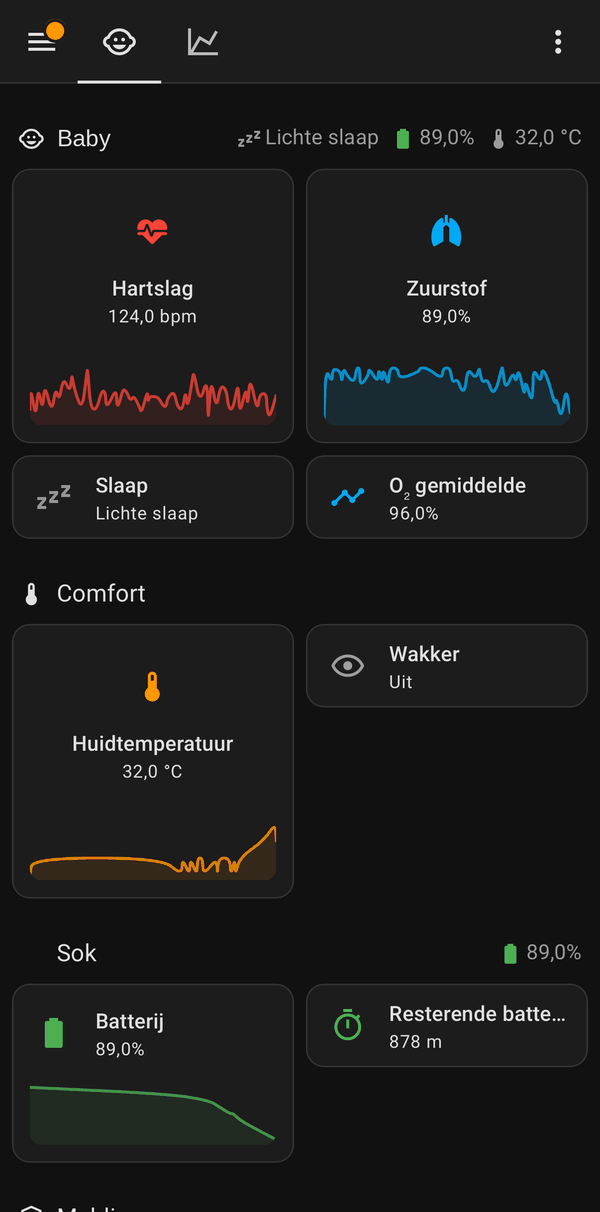
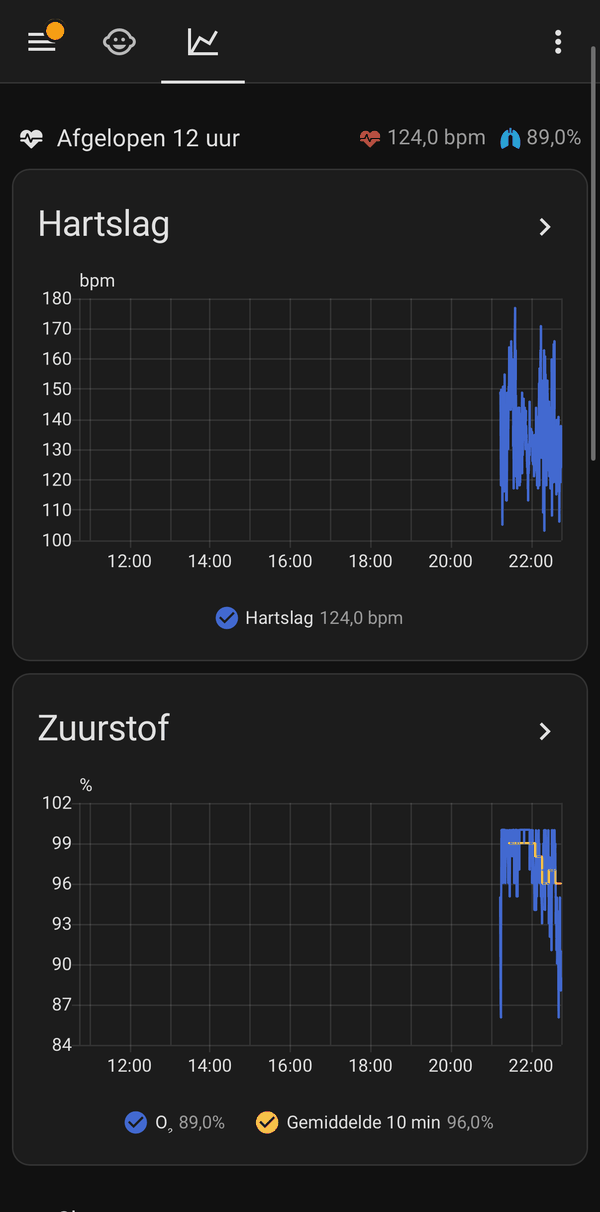
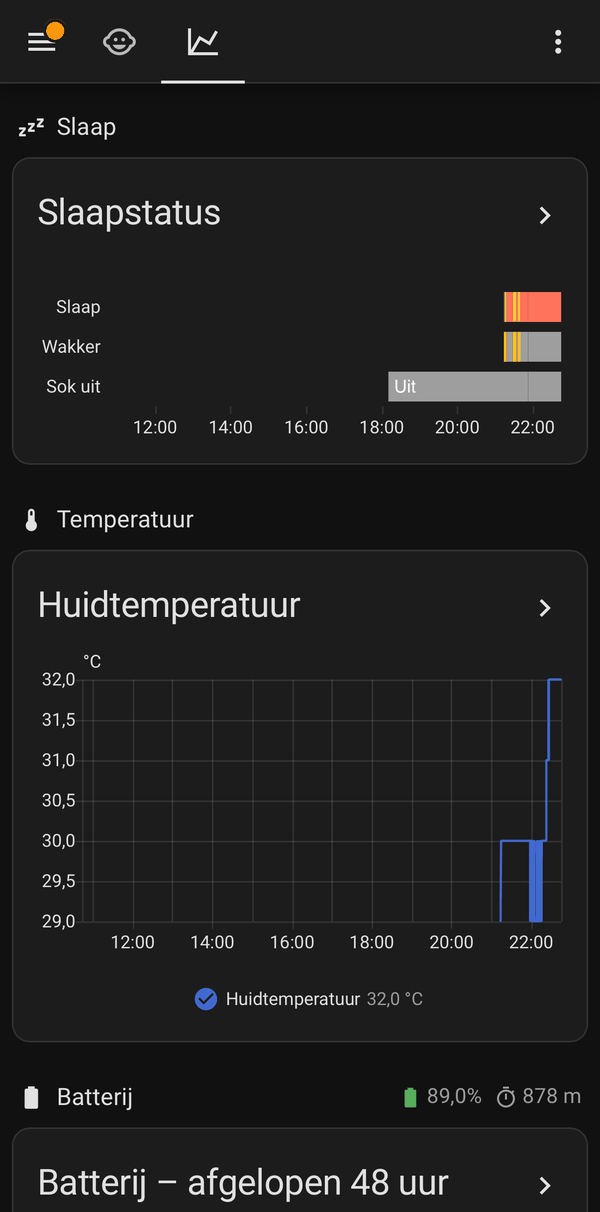
The included dashboard (Dutch version). Built-in cards only, no custom cards needed.
A Home Assistant custom integration for the Owlet Smart Sock 2, Smart Sock 3 and Dream Sock, using the Owlet cloud. It is read-only towards the base station: the only thing it ever writes is the APP_ACTIVE flag that tells the base station a client is watching.
Note
This is a fork of lucasvollebergh/owlet, the maintained continuation of ryanbdclark/owlet by Ryan Clark. It keeps the same domain and entity unique ids, so it is a drop-in replacement, and differs in what it refuses to do and in how strictly it judges the data, see What is different in this fork. See Credits.
Warning
This is not a medical device. Data reaches Home Assistant by polling the Owlet cloud, which can be delayed, stop without warning or break when Owlet changes its private API. Never rely on this integration for alarms. Keep the Owlet base station and the official Owlet app as your primary alert.
- No switch, no control. The base station switch is gone. The integration can never switch the base station on or off, so no automation, dashboard tap or voice assistant can stop the monitoring. The vendored API client refuses every write except
APP_ACTIVE. The base station state is a read-only binary sensor. - Nothing stale is ever shown. Every value is judged by the timestamp the cloud attached to the reading. When the reading is not fresh, everything taken from it is unavailable, including the alerts, the battery and the charging state. A reading without a usable timestamp is never fresh. Whether the sock is charging is only believed from a fresh reading, so an old reading cannot hide stale data behind "charging". See Stale data detection.
- Honest values. A heart rate, oxygen or skin temperature of 0 and a ten minute average of 255 mean "not measuring" and show as unknown instead of being recorded. A null alert is unknown, not off. Unreadable fields never break the update.
- More of what the sock reports. Discomfort alert, low integrity reading, the preview priority alarms, base monitoring status, battery status and the time of the last red alert.
- No needless re-logins. Rate limits and server errors delay the next poll (honouring
Retry-After, then backing off) instead of asking for the password again. One token refresh at a time; refreshed tokens are stored even when the poll failed. - Fewer requests, no gaps.
APP_ACTIVEis written when the base station reports it went idle (it uploads for about 45 seconds per write) or at most every activation interval (30 s by default), instead of before every poll; after the read, and never during discovery or login. - Accounts per region. The same email can be set up in both Owlet regions; entries from earlier releases migrate automatically.
- Diagnostics by allowlist. Only known-harmless fields are included, so nothing Owlet adds later can leak identifiers.
- Blueprint and dashboards only react to real transitions: an alert that reappears after being unavailable sends no notification, and "No Owlet alerts active" shows only while every alert is really off.
- Home Assistant 2026.10 or newer (this fork is tested against the release it pins in CI), any installation type (OS, Supervised, Container, Core)
- HACS
- An Owlet account with at least one Smart Sock 2, Smart Sock 3 or Dream Sock
- In HACS, open the menu (three dots) and choose Custom repositories.
- Add
https://github.com/idomp/owletwith type Integration. - Search for Owlet Smart Sock in HACS and download it.
- Restart Home Assistant.
or go to Settings > Devices & services > Add integration and search for Owlet Smart Sock.
- Pick your region (Europe for accounts created in the EU or UK, World otherwise) and log in with your Owlet app credentials. The login lists your socks; an account without a supported sock is refused right there.

The domain (owlet) and all entity unique ids are unchanged from ryanbdclark/owlet, lucasvollebergh/owlet and jensdufour/owlet, so existing entities, dashboards and automations keep working.
- In HACS, open the old Owlet repository and choose Remove (this does not delete your config entry).
- Add this repository as a custom repository and download it, see above.
- Restart Home Assistant.
The config entry is migrated automatically (the account identity now includes the region). The base station switch entity is removed on the first start; the state lives on in the Base station on binary sensor with the same unique id.
Per sock:
| Type | Entities |
|---|---|
| Sensor | Heart rate, O2 saturation, O2 saturation 10 minute average, skin temperature, sleep state, battery percentage, battery remaining, signal strength, last reading, movement and movement bucket (disabled by default); diagnostic: alerts mask, base monitoring status, battery status, last red alert |
| Binary sensor | Charging, base station on, awake, sock off, high/low heart rate alert, high/low/critical oxygen alert, low/critical battery alert, lost power alert, sock disconnected alert, discomfort alert, preview high/medium/low/DRM priority alarm, data stale; diagnostic: low integrity reading |
Which entities appear depends on what your sock reports. Vitals are unavailable while the sock is charging.
A reading of 0 for heart rate, oxygen or skin temperature (and 255 for the ten minute oxygen average) means the sock is not measuring; those show as unknown and are never recorded as values. An alert the cloud reports as null is unknown, not off.
There is no switch. This integration never changes anything on the base station: the only thing it ever writes to the Owlet cloud is the APP_ACTIVE flag that tells the base station a client is watching. The base station state is a read-only binary sensor.
Users have reported values that stop changing while the Owlet app still shows live data. When the Owlet cloud keeps returning an old reading, a heart rate looks "frozen". The integration judges every reading by the timestamp the cloud attached to it (REAL_TIME_VITALS on the Smart Sock 3 and Dream Sock, each vital's own timestamp on the Smart Sock 2):
- A reading is fresh when that timestamp is within the stale data threshold. A reading without a timestamp, with an unreadable one, or with one more than a minute in the future is never fresh: when its age cannot be established it is not trusted.
- Only fresh readings are shown. When the reading goes stale everything taken from it becomes unavailable: the vitals, the sleep state, the battery, the charging and base station state and every alert sensor. An alert can never stay "on" because the cloud stopped updating.
- Data stale (binary sensor) turns on when readings are expected but no fresh one arrived. Whether readings are expected (sock not charging, base station on) is taken from the last fresh reading only, so an old reading cannot claim "charging" to silence the warning. The sensor's attributes say why (
reading_status), when the last reading was, how old it is and whether readings were expected. - The check also runs when a reading ages out between two polls, so a long polling interval never keeps a frozen value visible.
- Last reading (sensor) shows when the cloud last received data and stays available while the data is stale.
When the data stays stale for more than an hour while the sock should be sending readings, a warning appears under Settings > System > Repairs with the time of the last reading. It disappears by itself once fresh readings arrive, and never appears when the stale data threshold is set to 0.
Ready-made automations, import them with one click (requires the Home Assistant Companion app for notifications):
| Blueprint | What it does | Import |
|---|---|---|
| Owlet alert notification | Notification when one of the selected Owlet alerts goes from off to on, optionally as a critical notification that sounds on silent/do not disturb. |  |
| Owlet stale data notification | Notification when the Data stale sensor turns on (after an optional extra delay), and optionally when readings are back. | |
These notifications depend on Home Assistant polling the Owlet cloud and can be delayed. They do not replace the Owlet base station and app.
Two ready-made dashboards are included. Both only use built-in cards, so no custom cards need to be installed.
| File | Language | What it shows |
|---|---|---|
dashboards/owlet_nl.yaml |
Dutch | Two views. Baby: heart rate, O2 and skin temperature tiles with 6 hour trend graphs, sleep state, awake, battery, sock and base station status, and Owlet alerts that only show while active. Trends: the last 12 hours of heart rate, O2 and skin temperature, a sleep timeline, daily min/mean/max over 30 days and 48 hours of battery. This is the dashboard in the screenshots above. |
dashboards/owlet.yaml |
English | One view with heart rate and O2 gauges, active Owlet alerts, the last 12 hours of heart rate, O2 and sleep, daily min/mean/max of heart rate, O2 and skin temperature over 30 days, and battery and signal. |
Pick the file that matches the language of your Home Assistant. Home Assistant generates entity ids from the entity names in the language it runs in, so a Dutch installation has sensor.<prefix>_hartslag and an English one sensor.<prefix>_heart_rate.
-
Find your prefix. Go to Settings > Devices & services > Owlet Smart Sock, open your sock and click the heart rate entity, then the cog. The entity id is shown there. The prefix is everything between
sensor.and the entity name:Entity id Prefix sensor.owlet_sock_ab12cd34_heart_rateowlet_sock_ab12cd34sensor.nursery_owlet_sock_ab12cd34_heart_rate(newer releases add the area)nursery_owlet_sock_ab12cd34sensor.slaapkamer_owlet_sok_hartslag(Dutch, renamed device)slaapkamer_owlet_sok -
Prepare the YAML. Open the dashboard file on GitHub, copy it into a text editor and replace every
owlet_sock_serial_numberwith your prefix (find and replace all). -
Create the dashboard. Go to Settings > Dashboards > Add dashboard > New dashboard from scratch, give it a name and open it from the sidebar.
-
Paste it. Choose the pencil (Edit dashboard), then the three dots > Raw configuration editor, replace everything with your YAML and save.
A card that says "Entity not available" means that entity id does not match: check it on the device page and correct it in the raw configuration editor. The critical oxygen and critical battery alerts only exist on socks that report them, their cards stay hidden otherwise.
With more than one sock, duplicate the views and use the prefix of the other sock. The daily statistics start from the moment the integration is installed, so the trends fill up over time.
Gauge ranges and trend graphs are for display only and have no medical meaning. Alerts come from Owlet itself.
Settings > Devices & services > Owlet Smart Sock > Configure
| Option | Default | Description |
|---|---|---|
| Polling interval | 10 s | Seconds between requests to the Owlet cloud, minimum 5. Every poll costs several API calls per sock, a lower value raises the risk of rate limiting. |
| Stale data threshold | 5 min | Minutes without a new reading before the data is treated as stale. Set to 0 to disable. |
| Activation interval | 30 s | Longest time between two APP_ACTIVE writes (10 to 600). This flag tells the base station a client is watching, which makes it upload vitals; it is the only thing the integration ever writes. The base station uploads for about 45 seconds after each write, then sets the flag back to 0 itself; the integration writes again as soon as it sees that, so the interval is only a ceiling. |
The integration also supports Reconfigure (change region or log in again) and asks you to log in again when the Owlet login really is no longer valid. Rate limits and outages never trigger that: the next poll is simply delayed.
-
Values stop changing: check the Data stale and Last reading entities and the attributes of Data stale (
reading_statussays why). If the Owlet app shows fresh data but Home Assistant does not, download diagnostics (device page > three dots > Download diagnostics) and open an issue. Diagnostics are built from an allowlist: they contain the region, the options, the normalised values and, for known-harmless raw properties, their value and timestamp. Tokens, email, serial numbers, MAC addresses and baby details are never included. -
Readings stop between activations: the integration re-activates as soon as the base station reports it went idle; if readings still show gaps, lower the activation interval in the options.
-
Enable debug logging:
logger:
  logs:
    custom_components.owlet: debug
    custom_components.owlet.owletapi: debug
- Owlet has no public API. This integration uses the same private endpoints as the Owlet app, which Owlet can change or block at any time.
- The Owlet Cam is not supported.
- Only one Owlet account per Home Assistant config entry, add another entry for a second account.
- Nothing on the base station can be changed from Home Assistant, by design.
- Original author: Ryan Clark (@ryanbdclark) created this integration in ryanbdclark/owlet and the pyowletapi library that talks to the Owlet cloud. Everything here builds on that work. Thank you, Ryan.
- Maintained continuation: Lucas Vollebergh (@lucasvollebergh) took the integration over in lucasvollebergh/owlet, fixed it for current Home Assistant releases, added stale data detection, the blueprints and the dashboards, and maintains lucasvollebergh/pyowletapi (pyowletapi-ng), a copy of which ships in
custom_components/owlet/owletapi. This fork starts from his work. - Contributors to the original repository: everyone who sent fixes and translations upstream, including @MarjovanLier (multiple devices), @Julien80 (French translation) and @coreywillwhat (10 minute oxygen average filtering). The region-qualified account identity follows jensdufour/owlet.
- Maintainer of this fork: @idomp. Issues and pull requests go to this repository.
The original license (Apache 2.0) still applies, see LICENSE and NOTICE.
Issues and pull requests are welcome. Run the checks locally (Linux or WSL, Home Assistant does not run natively on Windows) with:
pip install -r requirements_test.txt
ruff check . && ruff format --check .
pytest